
Every page on this site is built with Elementor, a visual editor. You edit the page by looking at it, not by filling in a form.
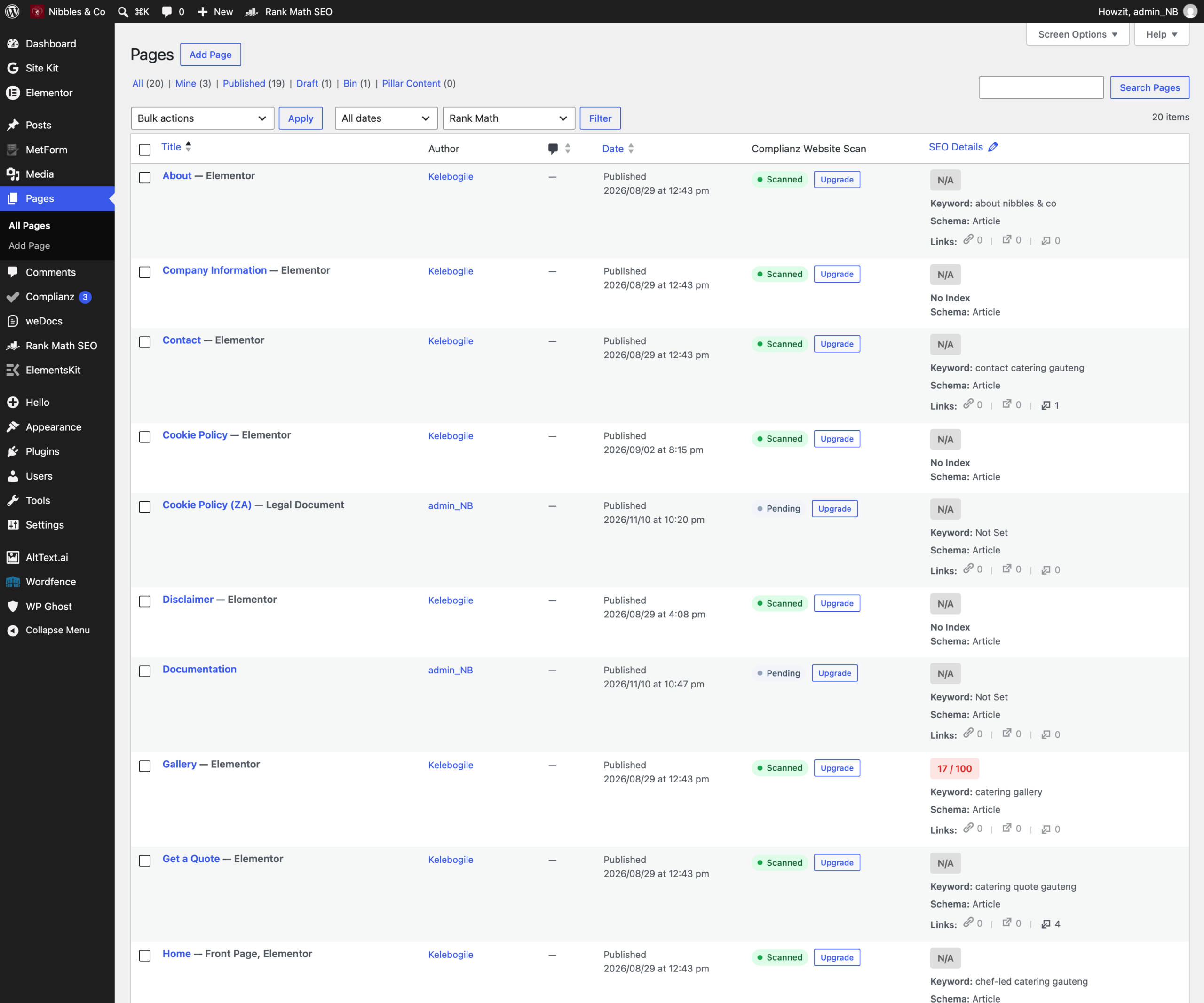
Opening a page for editing
- Click Pages in the left menu.
- Hover over the page you want and click Edit with Elementor. Do not click plain “Edit” — that opens the wrong editor and the page will look empty.
- Wait for the page to load. The site appears on the right, and a panel of settings on the left.
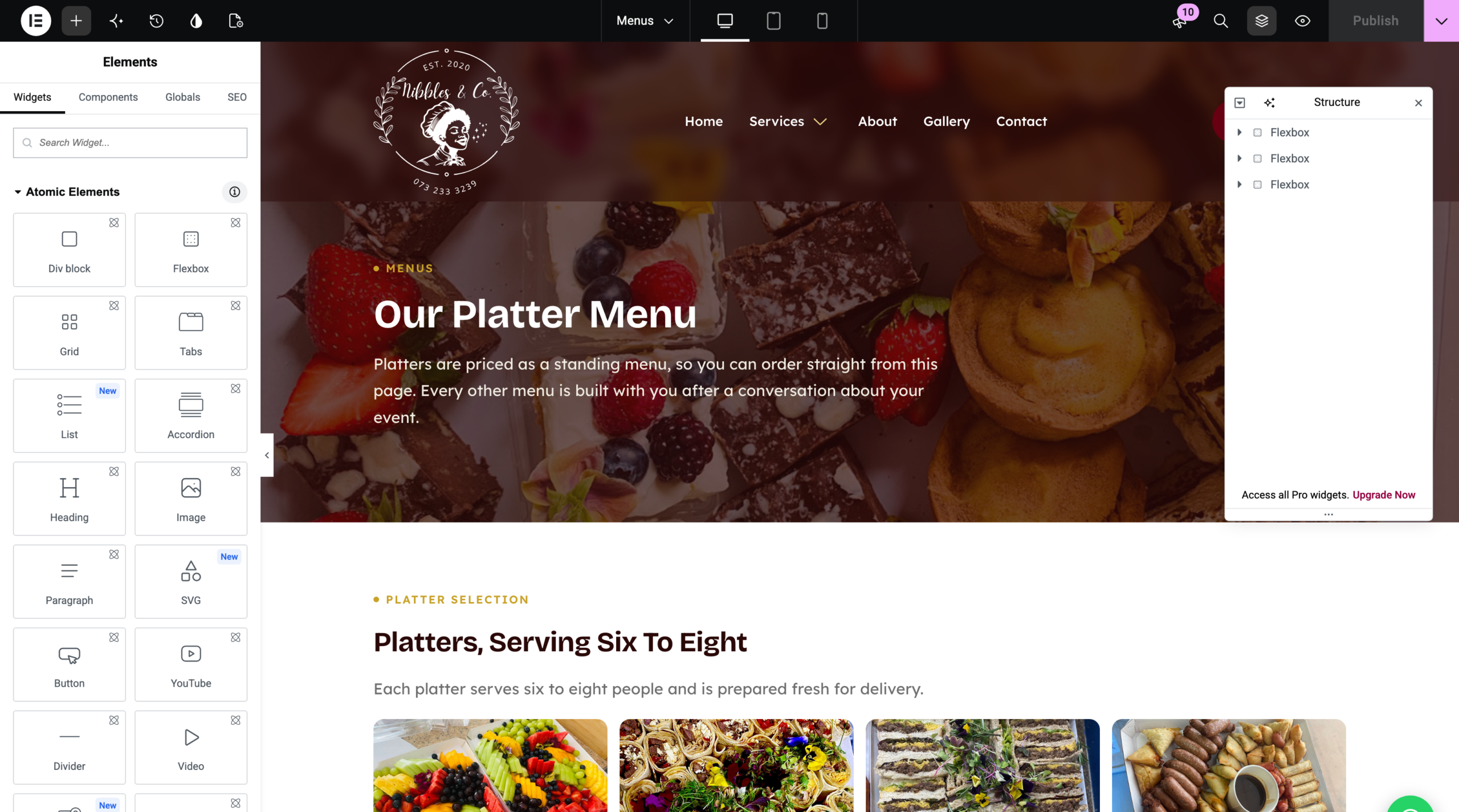
Changing words
- Click directly on the text you want to change. The left panel switches to that element.
- Edit the text in the left panel, or type straight onto the page where Elementor allows it.
- Click the green Update button at the bottom of the left panel.
Nothing you type is live until you press Update. If you close the tab without updating, the change is lost.
Undoing a mistake
Press Ctrl+Z (Windows) or Cmd+Z (Mac) to step backwards. To go further back, open the History panel from the icons at the bottom of the left panel: it lists every change in this session and every previously saved revision, and you can click any entry to return to it.
Checking before you publish
Click the eye icon (Preview Changes) at the bottom of the panel to see the page as a visitor would, in a new tab, before pressing Update.