
Images live in the Media library. You can add them there first, or upload them as you go while editing a page.
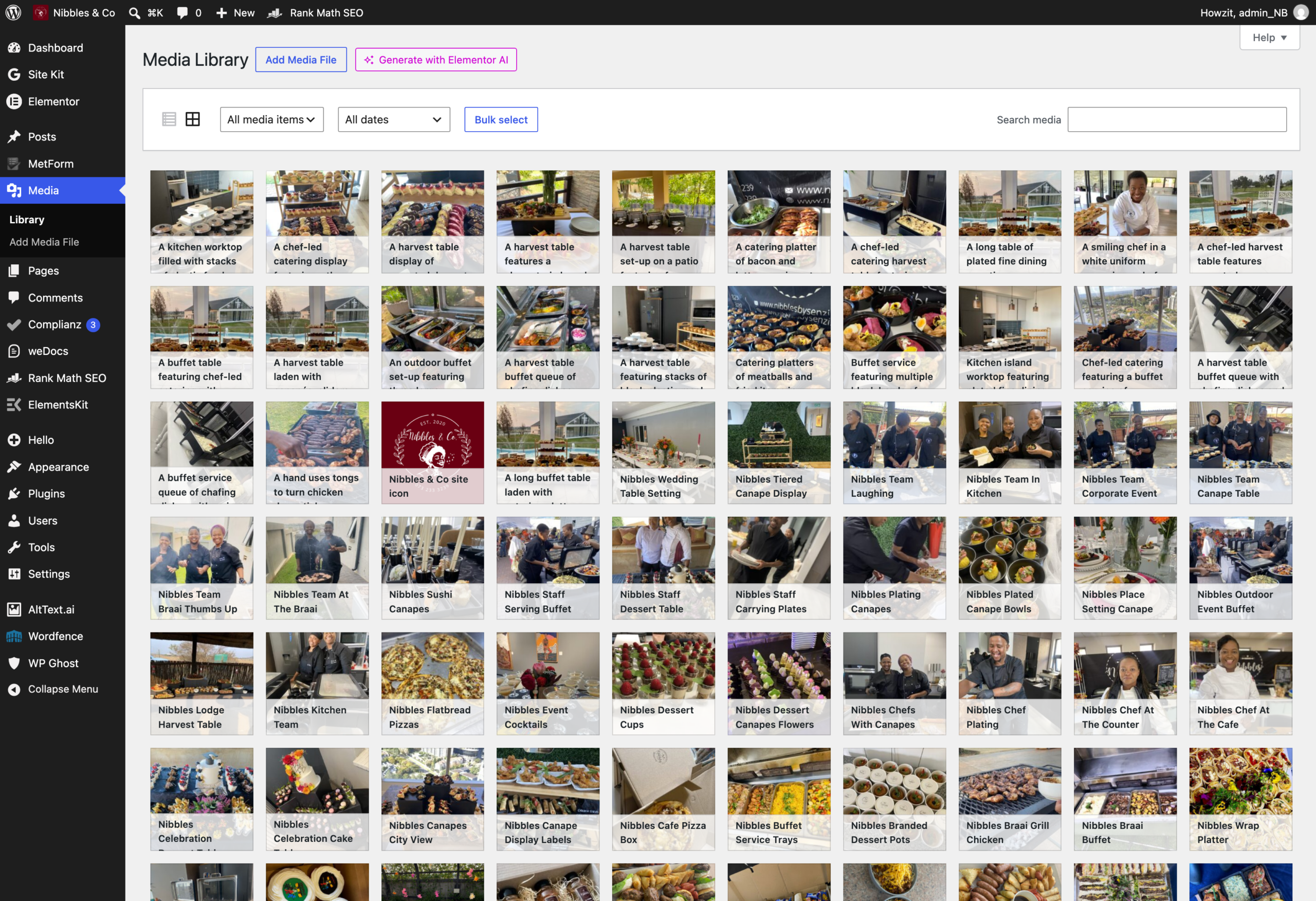
Replacing an image on a page
- Open the page with Edit with Elementor.
- Click the image you want to change.
- In the left panel, click the existing thumbnail under Choose Image.
- Either pick an image already in the library, or click Upload files to add a new one.
- Click Insert Media, then Update.
Picture shape
Gallery tiles and card photographs are automatically cropped to a 4:3 shape (slightly wider than tall). A tall portrait photograph will have its top and bottom cut off. For those positions, choose a landscape photograph, or one where the subject sits comfortably in the middle.
Before you upload: two things that matter
Strip the location data. Photographs taken on a phone store the exact place they were taken. The kitchen’s address is deliberately not published, so that information must not go onto the website. On a Mac, open the photo in Preview, choose Tools > Show Inspector, open the GPS tab and click “Remove Location Info”. On Windows, right-click the file, choose Properties > Details, then “Remove Properties and Personal Information”.
Size them down. A photo straight off a phone can be 5 MB or more and will slow the page down. Anything wider than about 2000 pixels is larger than the site can use.